| |
SHOWING MARKINGS
As of v1.35, k2pdfopt has a nice debugging option to clearly show you how it is interpreting
your PDF file by marking the regions on it in the order it chooses to display them.
The command-line option -sm (show
markings) does this, or you can select "sm" from the interactive menu.
This will generate a file name ending in "_marked.pdf". For example, if you
process a file called mydoc.pdf, the markings will be shown in the file mydoc_marked.pdf.
An example of the marked output is shown below for the
IEEE two-column template.
| |
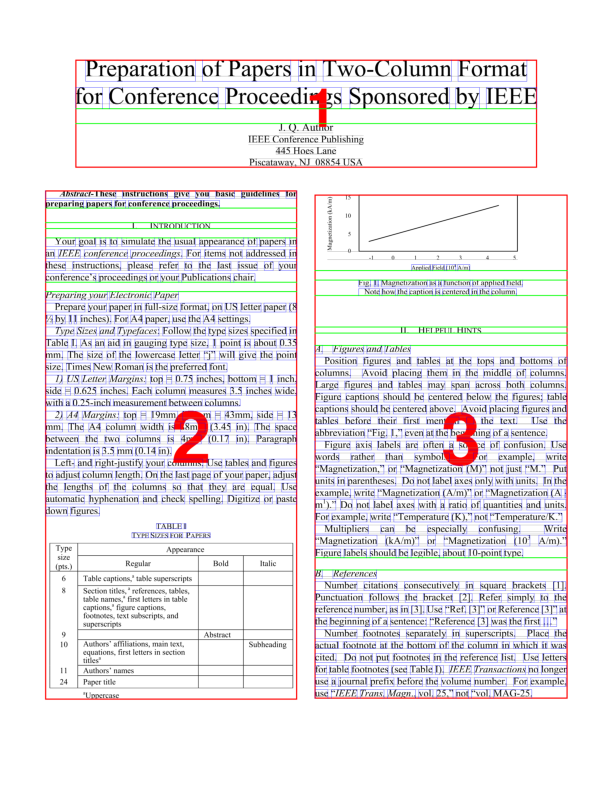
Marked File (-sm -odpi 250)
|
|
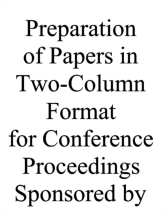
..._k2opt file |
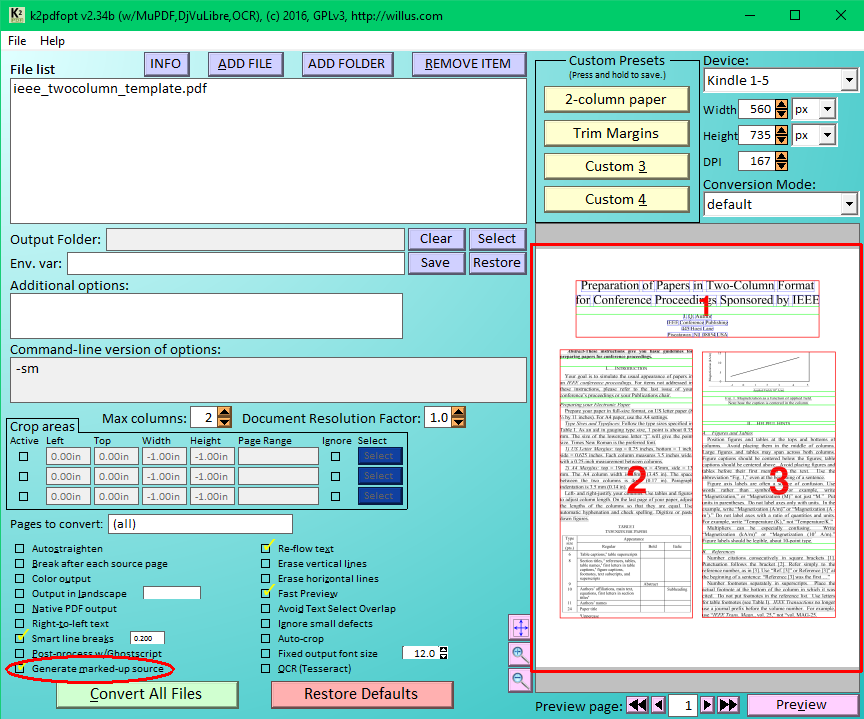
Windows GUI checkbox for previewing k2pdfopt markups. If the "Generate marked-up source" box
is checked, the preview window will show the marked-up source pages, otherwise it will show
the output (converted) pages. |
|
|
|